What is MCP?
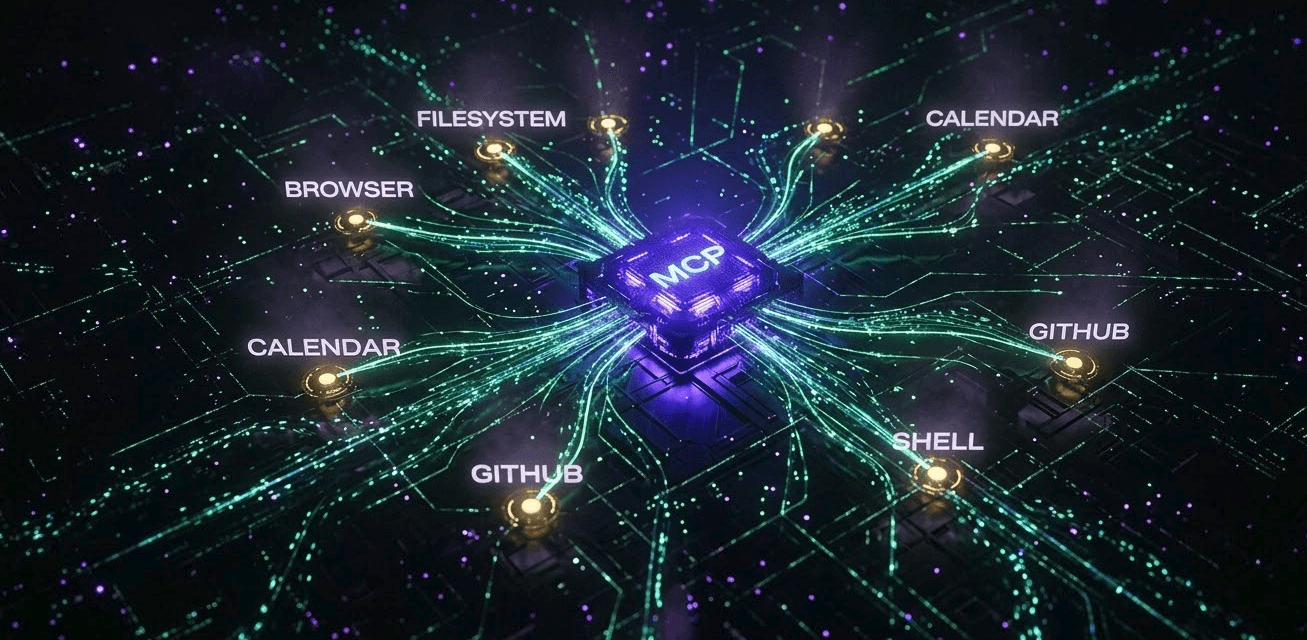
Model Context Protocol (MCP) is an open standard created by Anthropic that defines how AI models communicate with external tools and data sources. Before MCP, every AI integration was custom: one plugin for GitHub, another for Notion, another for your database — each built differently, each fragile.
MCP standardizes the interface. Any tool that implements the MCP server spec can be instantly connected to any MCP-compatible AI client — Claude Desktop, Cursor, VS Code, Windsurf, and more. Build once, connect everywhere.
Think of it like this: MCP is to AI tools what USB-C is to devices. One protocol. Every peripheral. No adapters.
How MCP Works: The Architecture
MCP has three components: a Host, a Client, and a Server.
- Host — the AI application you use (Claude Desktop, Cursor, VS Code Copilot)
- Client — built into the host; manages connections to MCP Servers
- Server — a lightweight process that exposes tools, resources, and prompts to the AI
When you ask Claude 'read the README in my project', the flow is: Claude (host) → MCP Client → Filesystem MCP Server → reads file → returns content → Claude responds with context.
Servers expose three types of capabilities: Tools (functions the AI can call, like read_file or run_query), Resources (data the AI can read, like files or database rows), and Prompts (pre-built prompt templates the AI can use).
MCP gives AI agents safe, structured access to your real environment — not just a text conversation.
Step 1 — Install Node.js and Prerequisites
Most MCP servers are Node.js packages. Make sure you have Node.js 18+ installed:
node --version   # should be 18 or higher
npm --version    # should be 9 or higher

# If not installed, use nvm:
curl -o- https://raw.githubusercontent.com/nvm-sh/nvm/v0.39.7/install.sh | bash
nvm install 20
nvm use 20
Step 2 — Install Claude Desktop (MCP Host)
Claude Desktop is the most fully-featured MCP host available today. Download it from anthropic.com/claude. Once installed, it creates a config file you will edit to add MCP servers.
Find your Claude Desktop config file:
# macOS
~/Library/Application Support/Claude/claude_desktop_config.json

# Windows
%APPDATA%\Claude\claude_desktop_config.json

# Linux
~/.config/Claude/claude_desktop_config.json
Step 3 — Configure Your First MCP Server (Filesystem)
The Filesystem MCP server lets Claude read, write, and search files on your machine. It's the most essential server to start with.
Open your Claude config file and add:
{
  "mcpServers": {
    "filesystem": {
      "command": "npx",
      "args": [
        "-y",
        "@modelcontextprotocol/server-filesystem",
        "/Users/yourname/projects",
        "/Users/yourname/Documents"
      ]
    }
  }
}
Restart Claude Desktop. You should see a hammer icon (🔨) in the Claude chat input — that confirms MCP tools are active. Now ask Claude: 'List all TypeScript files in my projects folder' — it will actually do it.
Step 4 — Add the GitHub MCP Server
The GitHub MCP server lets Claude search repos, read issues, create PRs, and manage your GitHub account. First, generate a Personal Access Token (PAT) at github.com/settings/tokens with `repo` and `read:org` scopes.
{
  "mcpServers": {
    "filesystem": {
      "command": "npx",
      "args": ["-y", "@modelcontextprotocol/server-filesystem", "/Users/yourname/projects"]
    },
    "github": {
      "command": "npx",
      "args": ["-y", "@modelcontextprotocol/server-github"],
      "env": {
        "GITHUB_PERSONAL_ACCESS_TOKEN": "ghp_your_token_here"
      }
    }
  }
}
Now you can ask Claude: 'Show me all open issues labeled bug in my repo rhrits/devlearnhub' — and it will fetch them live from GitHub.
Step 5 — Add the Brave Search MCP Server
This server lets Claude browse the web and search for real-time information. Get a free Brave Search API key at brave.com/search/api.
{
  "mcpServers": {
    "brave-search": {
      "command": "npx",
      "args": ["-y", "@modelcontextprotocol/server-brave-search"],
      "env": {
        "BRAVE_API_KEY": "your_brave_api_key_here"
      }
    }
  }
}
Step 6 — Add a PostgreSQL / SQLite Database Server
Query your database in natural language. Claude will translate plain English to SQL and run it safely.
For SQLite (no credentials needed):
{
  "mcpServers": {
    "sqlite": {
      "command": "npx",
      "args": [
        "-y",
        "@modelcontextprotocol/server-sqlite",
        "--db-path",
        "/Users/yourname/data/myapp.db"
      ]
    }
  }
}
For PostgreSQL:
{
  "mcpServers": {
    "postgres": {
      "command": "npx",
      "args": ["-y", "@modelcontextprotocol/server-postgres"],
      "env": {
        "POSTGRES_CONNECTION_STRING": "postgresql://user:password@localhost:5432/mydb"
      }
    }
  }
}
Step 7 — Full Production Config Example
Here is a complete real-world config with filesystem, GitHub, web search, and database — the core developer MCP stack:
{
  "mcpServers": {
    "filesystem": {
      "command": "npx",
      "args": [
        "-y",
        "@modelcontextprotocol/server-filesystem",
        "/Users/yourname/projects",
        "/Users/yourname/Documents"
      ]
    },
    "github": {
      "command": "npx",
      "args": ["-y", "@modelcontextprotocol/server-github"],
      "env": {
        "GITHUB_PERSONAL_ACCESS_TOKEN": "ghp_xxxxxxxxxxxx"
      }
    },
    "brave-search": {
      "command": "npx",
      "args": ["-y", "@modelcontextprotocol/server-brave-search"],
      "env": {
        "BRAVE_API_KEY": "BSAxxxxxxxxxxx"
      }
    },
    "sqlite": {
      "command": "npx",
      "args": [
        "-y",
        "@modelcontextprotocol/server-sqlite",
        "--db-path", "/Users/yourname/data/app.db"
      ]
    }
  }
}
MCP in Cursor IDE
Cursor supports MCP servers natively. Open Settings → MCP, or add a `.cursor/mcp.json` file in your project root (project-scoped) or edit `~/.cursor/mcp.json` (global):
# Project-scoped (only active in this repo)
.cursor/mcp.json

# Global (active in all Cursor projects)
~/.cursor/mcp.json
The config format is identical to Claude Desktop:
{
  "mcpServers": {
    "filesystem": {
      "command": "npx",
      "args": ["-y", "@modelcontextprotocol/server-filesystem", "."]
    },
    "github": {
      "command": "npx",
      "args": ["-y", "@modelcontextprotocol/server-github"],
      "env": {
        "GITHUB_PERSONAL_ACCESS_TOKEN": "ghp_xxxxxxxxxxxx"
      }
    }
  }
}
Restart Cursor. In the Composer (Cmd+I), you'll now see MCP tools listed. You can reference them directly: '@filesystem read src/lib/auth.ts' will read the actual file and include it as context.
MCP in VS Code (GitHub Copilot)
VS Code now supports MCP through GitHub Copilot in Agent mode. Add your MCP config to VS Code settings:
# Open VS Code settings JSON (Ctrl+Shift+P → "Open User Settings JSON")
# Add this block:

{
  "github.copilot.chat.agent.thinkingTools": true,
  "mcp": {
    "servers": {
      "filesystem": {
        "command": "npx",
        "args": ["-y", "@modelcontextprotocol/server-filesystem", "${workspaceFolder}"]
      },
      "github": {
        "command": "npx",
        "args": ["-y", "@modelcontextprotocol/server-github"],
        "env": {
          "GITHUB_PERSONAL_ACCESS_TOKEN": "ghp_xxxxxxxxxxxx"
        }
      }
    }
  }
}
Switch Copilot Chat to Agent mode (click the mode selector in the chat panel), and MCP tools become available. Use `#` to reference tools directly in your prompt.
Popular MCP Servers Reference
These are the most useful community MCP servers available today:
- @modelcontextprotocol/server-filesystem — read, write, search local files
- @modelcontextprotocol/server-github — issues, PRs, repos, code search
- @modelcontextprotocol/server-brave-search — real-time web search
- @modelcontextprotocol/server-sqlite — query SQLite databases in natural language
- @modelcontextprotocol/server-postgres — query PostgreSQL databases
- @modelcontextprotocol/server-puppeteer — control a headless browser, take screenshots
- @modelcontextprotocol/server-slack — read channels, post messages (with OAuth)
- @notionhq/notion-mcp-server — read/write Notion pages and databases
- mcp-server-supabase — Supabase tables, auth, storage via MCP
- @modelcontextprotocol/server-memory — persistent AI memory across conversations
Security Best Practices
MCP gives AI agents real access to real systems. Treat this seriously:
- Never put API keys directly in config files committed to git — use environment variables or a secrets manager
- Scope filesystem access to specific directories, never root /
- Use read-only database credentials wherever possible
- Review what tools each MCP server exposes before enabling it
- Add .cursor/mcp.json and claude_desktop_config.json to your .gitignore
- Rotate your GitHub PAT regularly and use fine-grained tokens with minimal scopes
# Add to .gitignore to avoid leaking credentials
.cursor/mcp.json
.env.local
claude_desktop_config.json
Troubleshooting Common Issues
- Hammer icon not showing — restart the host app after editing config; check for JSON syntax errors
- Server failed to start — run the npx command manually in terminal to see the error directly
- Permission denied on filesystem — ensure the path in args actually exists on your machine
- GitHub 401 error — token expired or missing required scopes; regenerate at github.com/settings/tokens
- npx slow on first run — it downloads the package; subsequent runs use cache and are instant
MCP is still early — but the trajectory is clear. Every major AI company (Anthropic, Google, OpenAI) has adopted or announced support. Every major editor (Cursor, VS Code, Windsurf, JetBrains) is integrating it.
The developers who understand MCP today will be the ones building the agentic workflows everyone else copies tomorrow.
"MCP doesn't make AI smarter. It makes AI useful — by connecting intelligence to action.
Topics